Safe browsing can feel hard when so many sites track what you do. Small privacy tools can help you keep more control without making the web hard to use.
1. Use a Private Browser Window
A private browser window is one of the easiest ways to start. It looks plain and simple, with a dark or clean tab area that helps remind you that the session will not save much local data.
This can help if you share a device or if you do not want your search history kept on the computer. It also works well for quick checks, like looking up gifts, travel plans, or a one-time login.
Private windows do not hide you from every site, but they do cut down on saved cookies and history on the device. That makes them a low-cost, no-cost choice that many people use every day.
2. Add a Trusted Ad Blocker

An ad blocker can make pages look much cleaner by removing many banners and pop-ups. You may notice less clutter, faster page loads, and fewer bright boxes jumping around the screen.
Many ad blockers also stop some tracking scripts, which can help with privacy. They are often free, easy to set up, and simple to turn on or off for sites you trust.
If you want a more personal setup, you can allow ads on sites you like and block them everywhere else. This gives you more control and lets you shape the web to fit your own use.
3. Turn On Tracker Blocking
Tracker blocking is a smart step if you want sites to know less about your habits. It can stop hidden tools that follow your clicks across many pages and build a profile about you.
Some browsers now include this feature by default, and the setting is easy to find in privacy menus. The screen often shows a shield icon or a small privacy badge, which makes it feel clear and simple.
This trend has grown because more people want less data shared behind the scenes. It is usually free, and it works best when you keep it on all the time instead of only using it now and then.
4. Use a Search Engine That Tracks Less

A privacy-friendly search engine can be a good swap if you want less logging of your searches. The page may look much like a normal search site, but it often keeps fewer details about you.
This can help with both privacy and peace of mind, since your search history may not be tied to a full profile. Many of these tools are free, and they still give useful results for daily use.
You can also make it your default search option in your browser settings. That small change can fit your habits better and make private browsing feel more natural each day.
5. Clear Cookies on a Regular Schedule

Cookies can be useful, but they can also follow you from site to site. A simple cleanup plan can help keep old logins, saved ads, and stale site data from piling up.
Many browsers let you clear cookies when you close the app or on a set schedule. The menu is often easy to read, with check boxes that let you pick what stays and what goes.
This can help if you want a balance between ease and privacy. It may take a little more sign-in work, but it can also keep your browser feeling fresh and less crowded.
6. Use a Password Manager
A password manager stores your logins in one protected place, so you do not need to reuse weak passwords. It often shows up as a small box or key icon, and it can fill forms for you with a click.
This helps privacy because strong, different passwords make it harder for bad actors to get into your accounts. Many password managers are free, while paid plans may add extras like shared vaults or secure notes.
You can also use it to keep work, school, and home logins apart. That kind of personal setup can make your online life easier to sort and safer to handle.
7. Turn on Two-Step Sign-In
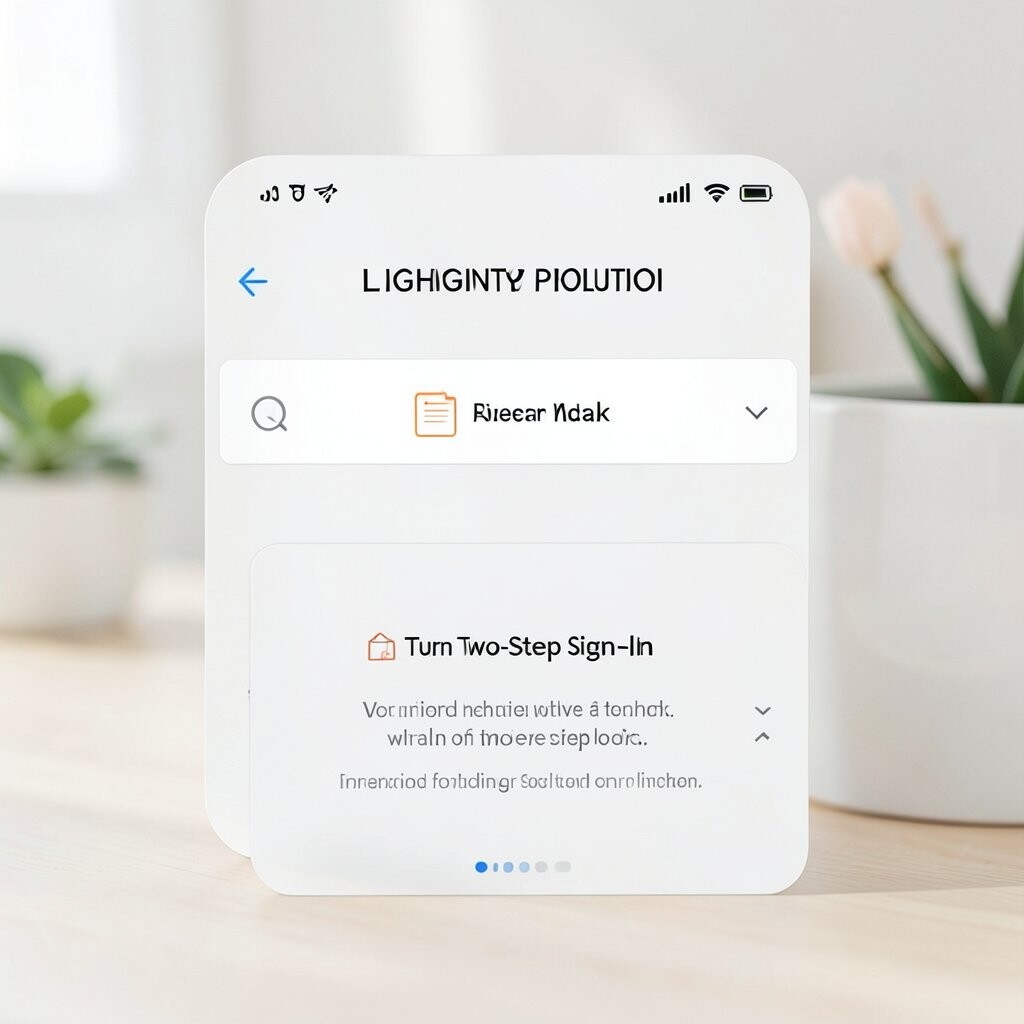
Two-step sign-in adds another layer when you log in to an account. After your password, you may type a code, tap an app, or use a small security key.
This can help a lot if someone learns your password, since they still need the second step. It is a simple idea, but it can make a big difference for email, banking, and cloud storage.
Some people use text codes, while others like app-based codes because they feel a bit safer. The best choice is the one you can keep using without much trouble.
8. Try a Privacy-Focused Browser

Some browsers are built with privacy in mind from the start. They may block trackers, hide some fingerprinting data, and show a cleaner look with fewer extra parts on the screen.
This can be useful if you want less setup work and more protection right away. Many of these browsers are free, and they often fit well with everyday use like reading news, shopping, or checking email.
People like them because they often feel simple and fast. If you want, you can keep your main browser for some tasks and use a private one for the rest.
9. Adjust Browser Privacy Settings

Most browsers have built-in privacy settings, but many people never open them. These menus can let you turn off third-party cookies, block pop-ups, and limit site access to your location or camera.
The page may look like a plain list, but it can give you a lot of control. You can often choose different levels for normal use, work, or high-privacy browsing.
This is a good place to make the browser fit your own habits. If you shop online a lot, you may want one set of rules, while someone else may want tighter limits for news and social media.
10. Use a Virtual Private Network

A virtual private network, or VPN, can hide your internet traffic from some prying eyes on public Wi-Fi. It often adds a small icon in your menu bar or phone screen, which makes it easy to spot when it is on.
This can help when you use coffee shop Wi-Fi, airport internet, or hotel networks. Many VPN services cost money, but some have low-cost plans or limited free versions for light use.
It is important to pick a trusted service with a clear policy about data use. A good VPN can be part of a simple privacy plan, but it works best when paired with other smart habits.
11. Keep Your Browser and Device Updated
Updates may not look exciting, but they often fix weak spots that others could use. When your browser and device stay current, you get better security with very little extra work.
Update screens are usually plain and direct, with a button that says install or restart. That simple look helps make the process less stressful, even if you are not very tech-savvy.
This is one of the cheapest privacy steps because it is often free and already built in. Many people set automatic updates so they do not have to think about it as much.
12. Use Separate Profiles for Different Tasks

Separate browser profiles can help keep work, school, and personal life apart. Each profile can have its own bookmarks, logins, and saved settings, which makes the browser feel more organized.
This is useful if you do not want every site to mix together in one place. It can also make your screen easier to read, since each profile may have its own color or icon.
People who work from home often like this setup because it helps them switch modes. You can make one profile private and another more open, based on what you need each day.
13. Review Site Permissions Often

Websites may ask for access to your camera, microphone, location, or notifications. A quick review of these permissions can help you remove access that no longer makes sense.
The settings page often shows a simple list of sites and the tools they can use. It may look plain, but it gives you a clear way to decide what each site should get.
This step is good for personal use because not every site needs the same access. It also fits current trends, since more people now want to keep a tighter handle on what their browser shares.